Jujutsu Beatdown Gameplay, Performance and Audio Settings
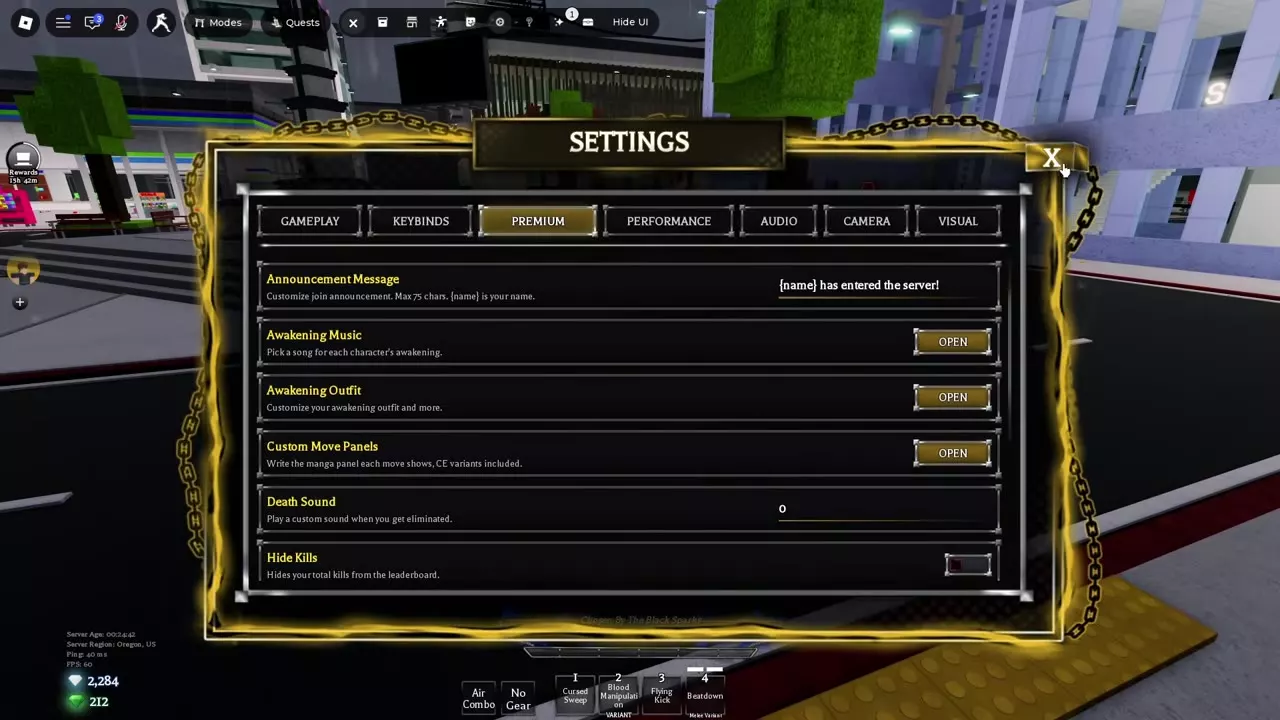
Open the gear icon in the in-game toolbar to change how you move, what you see during fights, and which sounds you hear. The Premium tab holds pass-specific options for awakening outfits, songs, and custom sounds.
Open Settings → Gameplay for Auto Run, screen flashes, and debris. In Audio, set Soundtrack Volume to 0 to mute background tracks while keeping sound effects. Turn off Others' Awakening Music to mute other players' awakening songs. Use Premium to configure the customization options unlocked by your passes.
Settings Tabs and Gameplay Controls
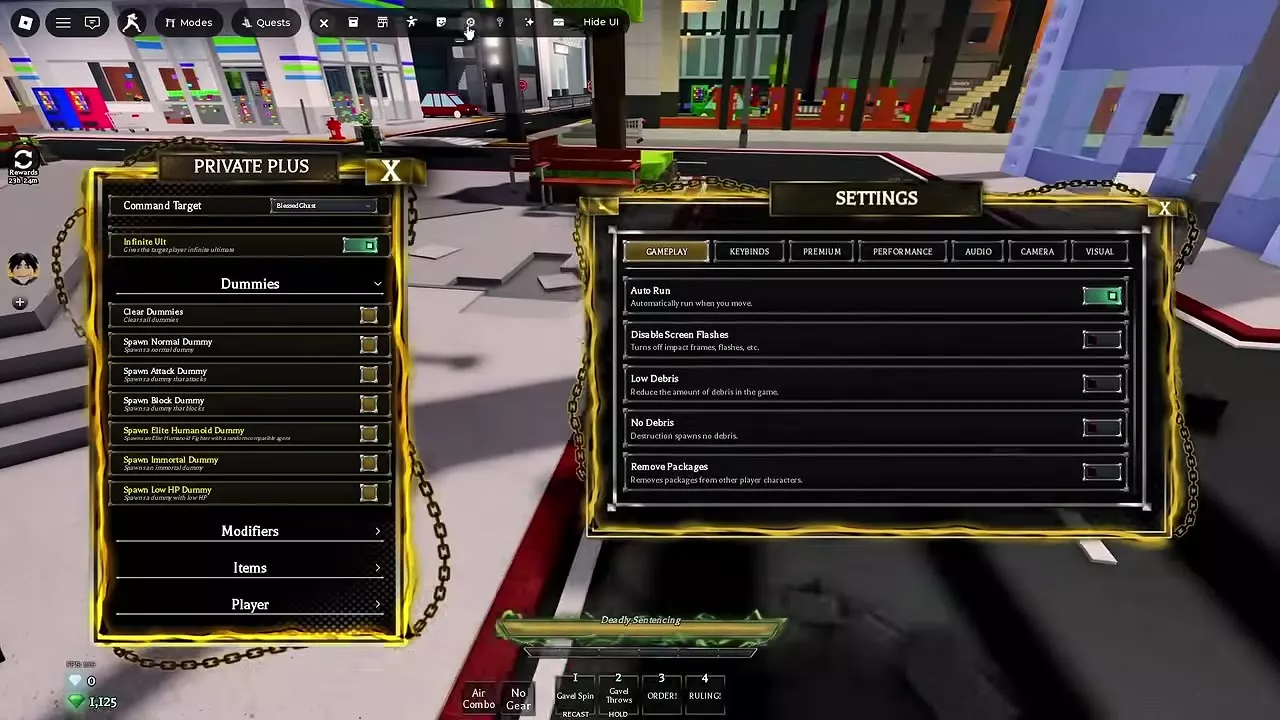
Open the gear icon in the top toolbar and select Gameplay. The V2 Settings menu has seven tabs: Gameplay, Keybinds, Premium, Performance, Audio, Camera, and Visual.
| Gameplay option | Effect |
|---|---|
| Auto Run | Run automatically when moving |
| Disable Screen Flashes | Suppress impact frames and flashes |
| Remove Packages | Hide other players' avatar packages |
The switches sit on the right of each row and turn green when enabled. Use the X in the upper-right corner to close Settings. For remapping inputs or editing the touch layout, see Controls and Keybinds.
Debris, Effects and Performance Readouts
In Settings → Gameplay, turn on Low Debris to keep some destruction fragments on screen. Choose No Debris if you want destruction to stop spawning fragments altogether. No Debris is the better choice when scattered fragments make it harder to track a fighter.
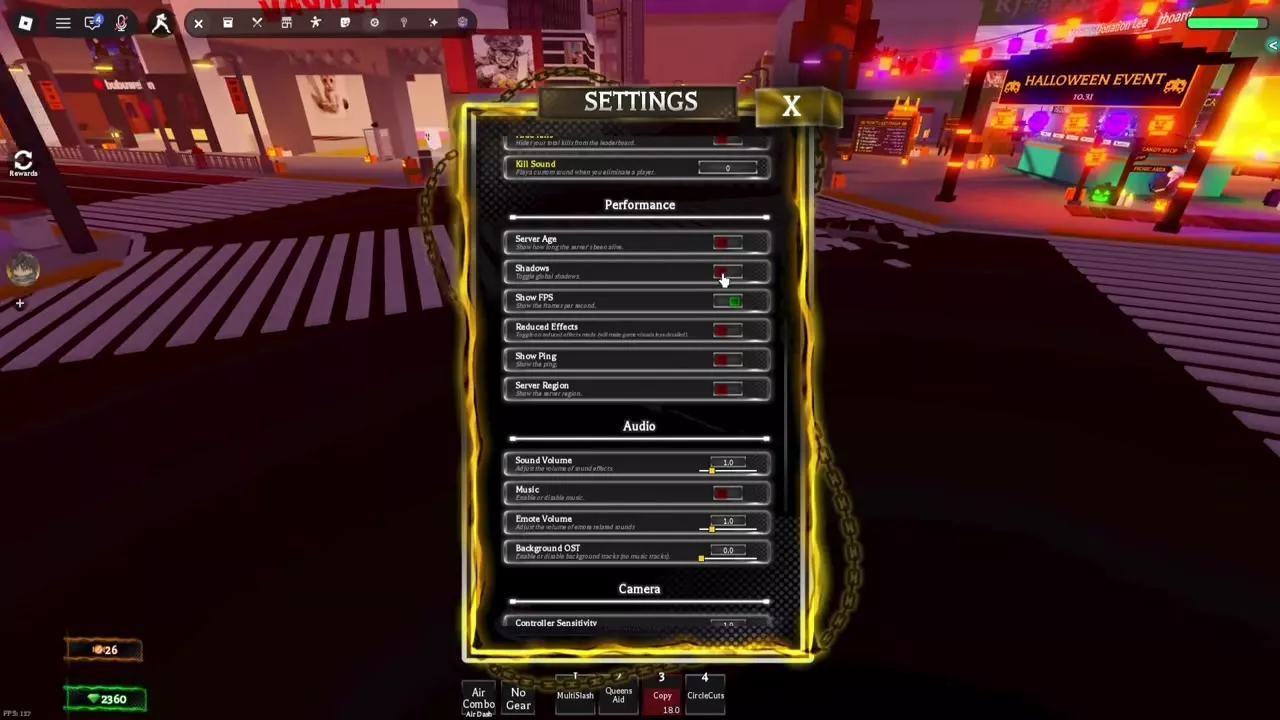
Pre-V2 Performance controls
| Option | What it controls or displays |
|---|---|
| Shadows | Global shadows |
| Reduced Effects | Simpler visual effects |
| Show FPS | Frames per second |
| Show Ping | Network latency |
| Server Age | Time since the server started |
| Server Region | Server location |
Turn off Shadows for a brighter view or enable Reduced Effects to simplify busy scenes. Use Show FPS and Show Ping together when play feels choppy. Low FPS points to a rendering slowdown, while high ping points to network delay. Server Region is also available in V2 Settings to display the server's location.
Audio and Player Muting
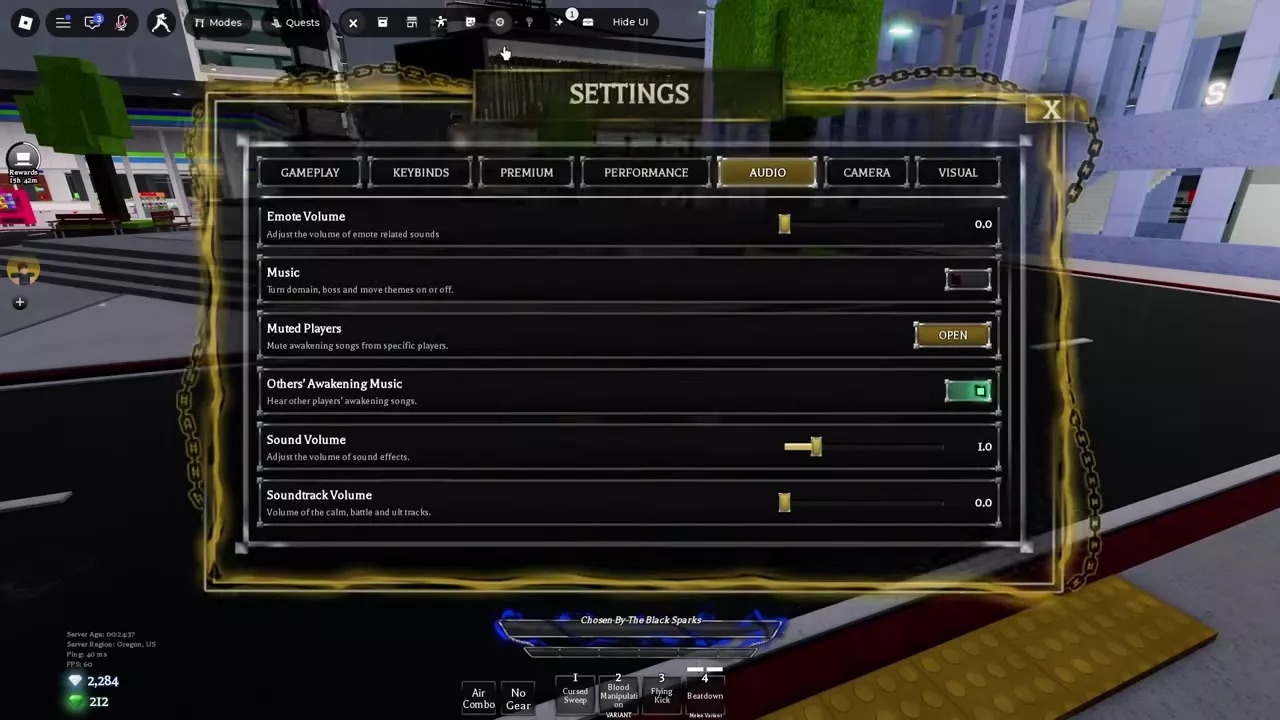
Open Settings → Audio. To mute the calm, battle, and ultimate background tracks while keeping combat sound effects, set Soundtrack Volume to 0 and leave Sound Volume at your preferred level. Emote Volume adjusts emote sounds separately. In the pre-V2 Audio section, look for Background OST to adjust background tracks.
- Turn Music off to mute domain, boss, and move themes.
- Turn Others' Awakening Music off to mute awakening songs from all other players.
- To mute specific players' awakening songs, leave Others' Awakening Music on, select Open next to Muted Players, and choose whom to mute.
Premium Outfits, Music and Kill Sounds
Open Settings → Premium and use the option unlocked by the corresponding pass. For prices and the rest of each pass's perks, see the Game Pass Directory.
Customize an awakening
- Awakening Outfit lets you choose an outfit, Aura, Kill Effect, Cursed Energy color, and title. Select Open, choose the character, and set the look that applies when they awaken. For managing your regular color separately, see how to reroll and save Cursed Energy colors.
- Awakening Music lets you set a song for each character. Select Open, choose a character, and pick their song. It plays when that character awakens, and nearby players hear it if they have your awakening music enabled. Use audio you made yourself or free-to-use audio from the Roblox Creator Store. Copyrighted songs, slurs, and explicit lyrics are prohibited, and songs that break those rules are removed.
Set custom kill and death sounds
The Custom Kill Sound pass unlocks both sound settings. Use Kill Sound in Settings for the sound that plays when you eliminate another player. Use Death Sound in Settings → Premium for the sound that plays when you are eliminated.
Edit announcements, move panels, and kill visibility
-
Announcement Message lets VIP players set a join announcement of up to 75 characters. Insert
[name]where your player name should go, as in[name] has entered the server!. - Custom Move Panels lets you edit the comic-style panels that appear when you cast moves, including Cursed Energy variants. Select Open beside the option to edit them.
- Hide Kills hides your total kills on the leaderboard. VIP also includes a visibility control for your maximum streak.